
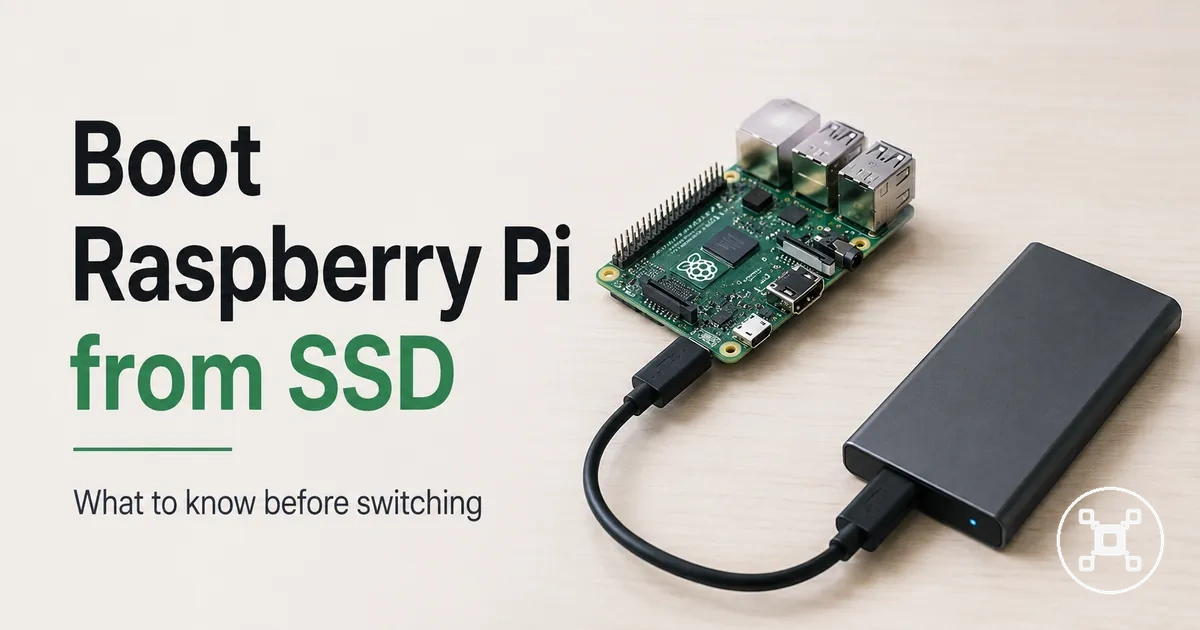
Raspberry Pi boot from SSD setup
Raspberry Pi boot from SSD setup is the process of preparing a Raspberry Pi to start its operating system from an SSD through a compatible storage path. SSD boot is controlled by the Raspberry Pi model, bootloader state, boot order, storage connection, and power stability conditions, so the SSD alone does not determine the final boot result. When the boot method and hardware path are compatible, SSD booting can provide an alternative to using a microSD card as the primary boot storage.
A microSD card can remain available as a fallback path while the SSD boot process is tested and confirmed.
A Raspberry Pi SSD boot configuration requires the correct combination of hardware and software conditions. USB boot uses an external SSD connected through a suitable adapter or enclosure path, while NVMe boot uses an NVMe storage path supported by the relevant Raspberry Pi configuration. The bootloader or EEPROM state, boot order settings, SSD detection, and power stability affect whether the Raspberry Pi starts from the intended storage device. A microSD card can remain available as a fallback path while the SSD boot process is tested and confirmed.
A Raspberry Pi SSD boot configuration requires the correct combination of hardware and software conditions.
This page focuses on preparing a Raspberry Pi to boot from an SSD rather than covering general storage selection. SD cards, USB SSDs, and NVMe storage are related storage contexts, but the main focus is the SSD boot path, compatibility conditions, and preparation required before verification.
Table of Contents
What SSD booting changes on a Raspberry Pi
SSD booting changes a Raspberry Pi by making the SSD the boot drive instead of using the SSD only as secondary storage. The operating system location moves to the SSD when the Raspberry Pi is configured to start from that storage path, changing how system files are read and written during normal use. The effect on reliability and system behaviour depends on the SSD connection, boot configuration, workload, and power conditions.
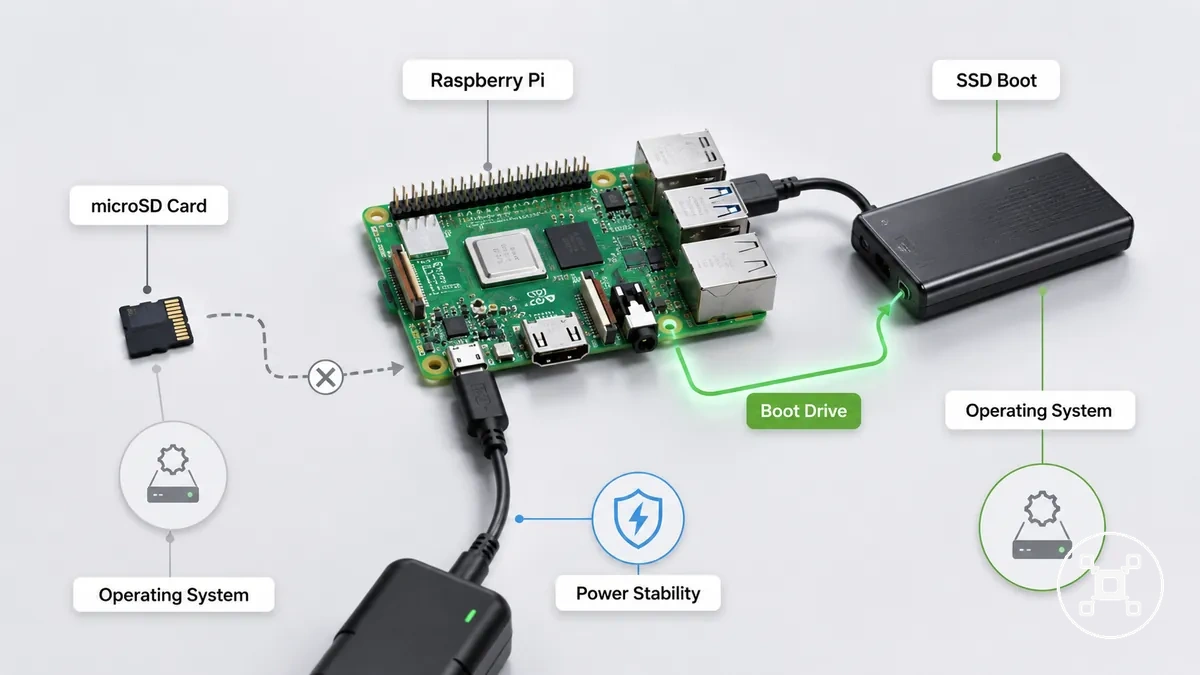
When a Raspberry Pi changes from a microSD card boot path to an SSD boot path, the main difference is the location of the operating system and root filesystem used during startup. The Raspberry Pi hub provides broader Raspberry Pi context, while this section focuses on the change from microSD-based startup to SSD-based startup. A microSD card can remain as a fallback or recovery path during testing, depending on the configured boot method.
| Storage path | Boot source | Operating system location | Trade-off |
|---|---|---|---|
| microSD card boot | microSD card | Operating system stored on the microSD card | Uses a simpler storage path with different reliability and workload characteristics |
| SSD boot | SSD | Operating system stored on the SSD | Uses an SSD storage path that requires compatible boot settings, connection hardware, and stable power |
SSD boot does not mean the whole Raspberry Pi system automatically gains the same improvement in every workload because storage speed is only one part of overall system behaviour. CPU activity, software workload, storage connection quality, and power stability also influence startup and daily operation. For users switching from a microSD card to an SSD, the decision involves balancing the SSD boot path with the compatibility and reliability requirements of the complete setup.
SSD boot support by Raspberry Pi model and boot method
SSD boot support on a Raspberry Pi is determined by the Raspberry Pi model, the selected boot method, and the storage connection used for startup. A compatible setup requires the correct relationship between the board model, bootloader state, EEPROM configuration, and SSD boot path. The practical result is whether the Raspberry Pi can detect the storage device and start the operating system from the intended boot drive.
The main SSD boot paths are USB boot and NVMe boot, and each uses different hardware conditions.
The main SSD boot paths are USB boot and NVMe boot, and each uses different hardware conditions. USB boot relies on an external SSD connection path with storage detection through the selected USB interface, while NVMe boot requires a compatible NVMe storage path and supporting Raspberry Pi configuration. The bootloader or EEPROM state affects the available boot method, while microSD dependency determines whether an SD card remains part of the startup process as a primary, fallback, or recovery path.
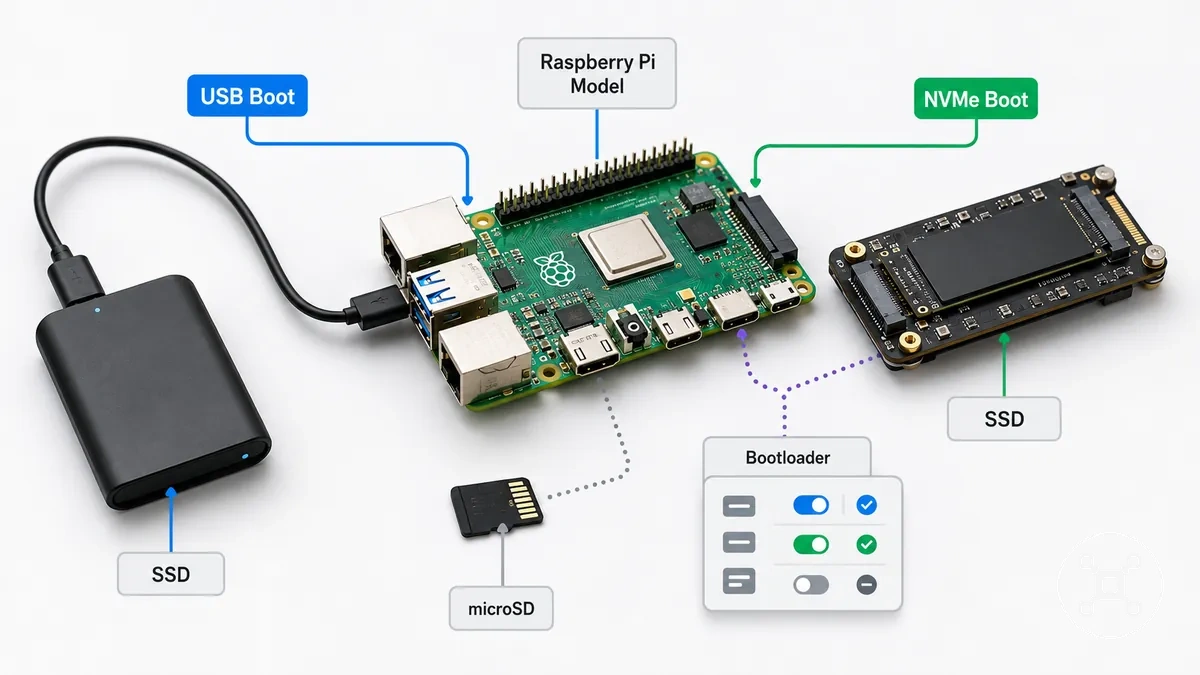
| Entity/part | Attribute/criterion | Value/condition | Effect/risk/decision |
|---|---|---|---|
| Raspberry Pi model | SSD boot method | Support is determined by board generation, available interface, and boot configuration | Defines which SSD boot path can be considered for the setup |
| USB SSD path | Boot support condition | Requires a detected external SSD connection and a compatible USB boot path | Allows startup from an SSD when the boot process recognises the storage device |
| NVMe boot path | Storage interface condition | Requires compatible NVMe hardware connection and boot configuration | Determines whether NVMe storage can act as the startup drive |
| Bootloader or EEPROM | Boot control | Controls boot method selection and storage detection behaviour | Influences whether the Raspberry Pi reaches the intended boot drive |
SSD boot compatibility should be checked through the combination of Raspberry Pi model, boot method, storage interface, and bootloader state rather than assuming a single SSD method applies to every setup. USB boot and NVMe boot represent different compatibility paths, so the correct choice depends on the hardware configuration and the required startup path.
USB boot on Raspberry Pi 4 and older boards
USB boot on Raspberry Pi 4 and compatible older boards is realistic when the board model, EEPROM or bootloader state, USB port path, and SSD adapter connection match the required boot conditions. The Raspberry Pi 4 can use USB boot when the boot process detects the external SSD storage path. Older boards require checking their specific boot support conditions because USB boot behaviour is not identical across all board generations.
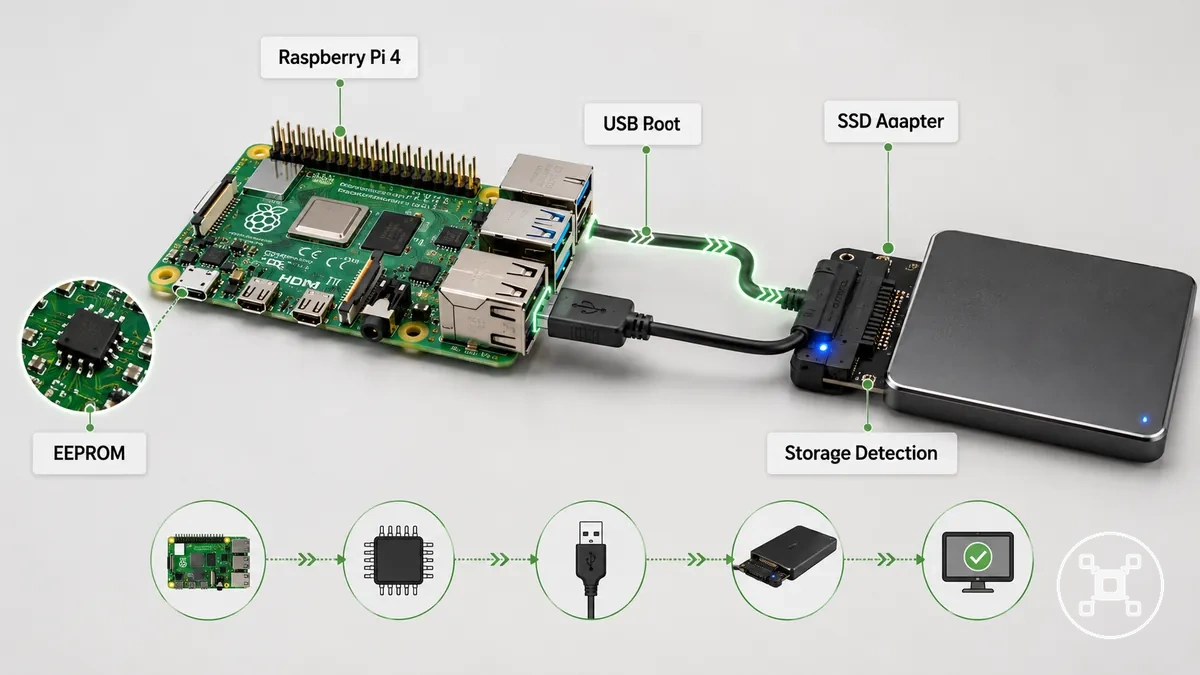
The main checks for USB boot involve the relationship between the Raspberry Pi model, EEPROM state, USB port, SSD adapter, and storage detection result. A microSD-assisted boot path can remain available as a fallback or recovery method while the SSD startup path is tested and confirmed.
- Raspberry Pi model: The board model determines the available USB boot path and required boot configuration.
- EEPROM or bootloader: The EEPROM state controls whether the selected boot method and storage detection process are available for the setup.
- USB port and SSD adapter: The connection path affects whether the Raspberry Pi can recognise the external SSD during startup.
- Boot outcome: Successful USB boot requires the Raspberry Pi to detect the SSD and continue startup from the intended storage device.
NVMe boot on Raspberry Pi 5
NVMe boot on Raspberry Pi 5 uses an NVMe storage path through a compatible PCIe connection rather than a USB SSD method. The Raspberry Pi 5, NVMe attachment, SSD form factor, and bootloader configuration must match the required boot conditions for NVMe startup. The result depends on whether the storage connection is recognised and whether the boot process supports the selected NVMe path.
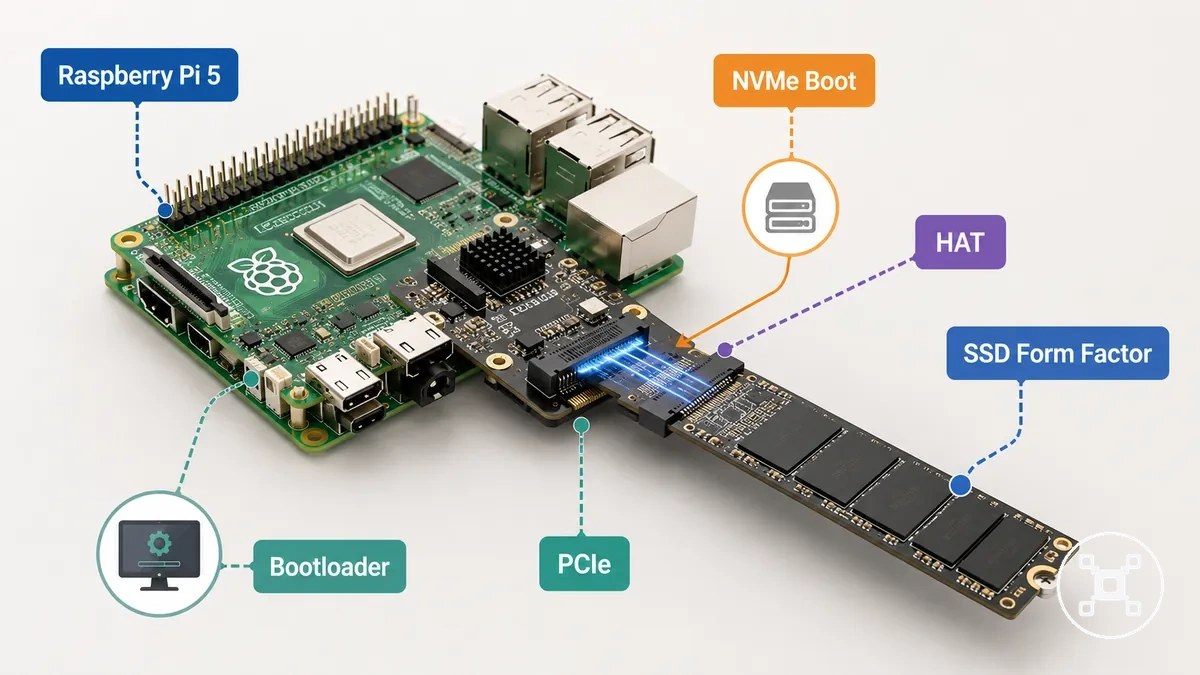
The main compatibility checks for NVMe boot involve the relationship between the Raspberry Pi 5, PCIe connection, HAT or PCIe board, NVMe SSD form factor, and bootloader readiness. NVMe boot is a Raspberry Pi 5 storage path based on board generation and storage interface, so the setup should be checked through the supported connection method and boot availability rather than treated as a general SSD approach.
- Raspberry Pi 5: The board generation provides the hardware context for an NVMe boot path.
- PCIe connection: The PCIe interface provides the connection path between the Raspberry Pi 5 and NVMe storage hardware.
- HAT or PCIe board: The attachment method determines how the NVMe storage device connects to the Raspberry Pi 5.
- SSD form factor: The physical NVMe drive format must match the supported attachment method.
- Bootloader: The bootloader configuration determines whether the Raspberry Pi 5 can recognise the NVMe storage path during startup.
Booting from SSD with or without a microSD card
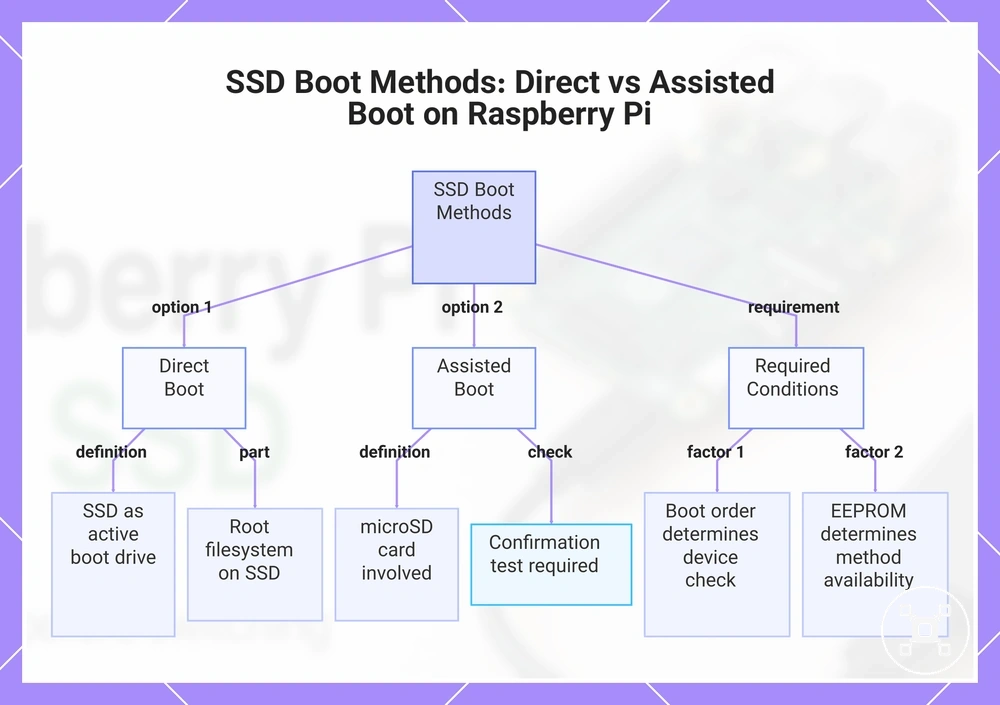
SSD boot can use a microSD card as part of the startup path or allow the SSD to act as the primary boot drive, depending on the boot order, EEPROM support, and confirmed boot configuration. Direct boot uses the SSD as the active boot drive when the Raspberry Pi recognises the SSD storage path, while assisted boot keeps the microSD card involved in the startup process.
The microSD card should only be removed after the SSD boot state has been tested and the active root filesystem has been confirmed.
The microSD card should only be removed after the SSD boot state has been tested and the active root filesystem has been confirmed. The required setup depends on whether the operating system location, bootloader configuration, and boot order point to the SSD or still rely on the microSD card during startup.
- Boot order: The boot order determines which storage device the Raspberry Pi checks during startup and whether the SSD is selected as the boot path.
- EEPROM support: The EEPROM or bootloader configuration determines whether the selected SSD boot method is available for the setup.
- Root filesystem: Direct SSD boot uses the SSD as the location for the operating system and root filesystem, while assisted boot keeps the microSD card involved in the startup chain.
- Confirmation test: The SSD boot path should be verified before changing the microSD card role or removing the card from the configuration.
This chart shows the two SSD boot methods for Raspberry Pi and the required conditions for each.
Bootloader and boot-order requirements for SSD boot
SSD boot requires the Raspberry Pi bootloader, EEPROM configuration, and boot order to identify the intended SSD storage path before startup can continue from the drive. The bootloader controls the available boot process, while the boot order determines which storage device the Raspberry Pi checks first. Verifying these conditions helps separate a configuration issue from a problem with SSD detection.
Verifying these conditions helps separate a configuration issue from a problem with SSD detection.
The verification process focuses on firmware state, storage device order, and whether the selected USB or NVMe path is detected during startup. Firmware behaviour and available configuration options depend on the Raspberry Pi model and operating system context, so commands or settings should be checked for the specific setup rather than applied as a universal configuration.
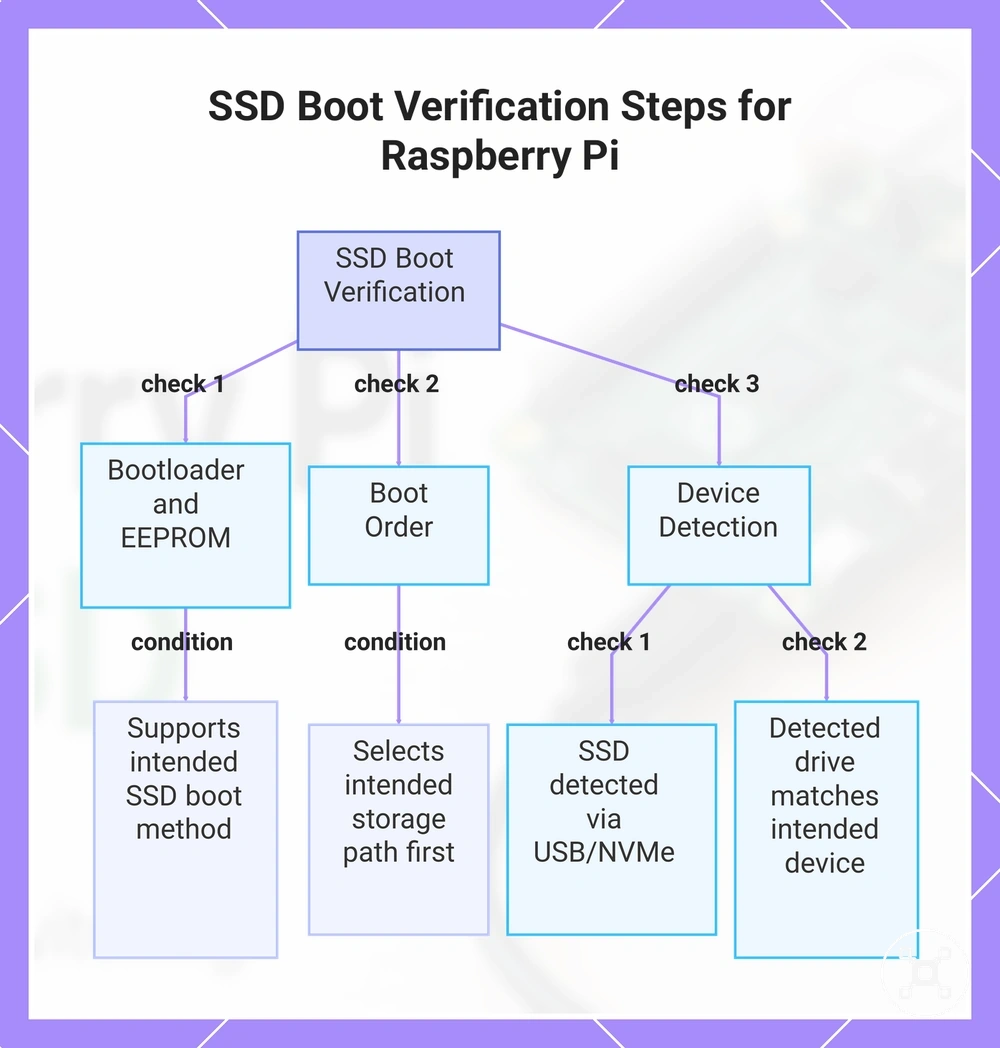
- Bootloader and EEPROM: Verify that the EEPROM or bootloader state supports the intended SSD boot method for the Raspberry Pi model.
- Boot order: Confirm that the boot priority selects the intended storage path before fallback devices.
- USB or NVMe detection: Check that the SSD is detected through the selected USB or NVMe connection before expecting SSD startup.
- Storage device order: Confirm that the detected drive matches the intended boot device and not another available storage path.
- Expected result: A correct configuration allows the Raspberry Pi to continue startup from the detected SSD storage path.
If the Raspberry Pi does not start from the SSD, an incorrect boot order or missing USB/NVMe detection can resemble SSD failure. Check the bootloader state, firmware context, device detection, and storage priority before treating the SSD as the cause.
Check the bootloader state, firmware context, device detection, and storage priority before treating the SSD as the cause.
This chart shows the required checks for SSD boot on Raspberry Pi, helping identify configuration issues before blaming the SSD.
SSD adapters, enclosures, and storage connections
SSD boot reliability depends on the storage connection path between the Raspberry Pi and the SSD, including the SSD adapter, USB SSD enclosure, cable quality, power draw, and port choice. These components influence whether the Raspberry Pi can detect the SSD and use it as part of a stable boot path.
These components influence whether the Raspberry Pi can detect the SSD and use it as part of a stable boot path.
The connection hardware should be evaluated by checking how each component affects compatibility and boot behaviour. An SSD adapter uses an adapter chipset to manage communication with the storage device, while a USB SSD enclosure provides the external interface between the SSD and the Raspberry Pi. Cable quality, power draw, and port choice also affect whether the storage connection reaches the expected detection and boot result.
| Entity/part | Attribute/criterion | Value/condition | Effect/risk/decision |
|---|---|---|---|
| SSD adapter | Adapter chipset | The bridge chipset controls communication between the SSD and the Raspberry Pi storage path | Influences compatibility and SSD detection conditions |
| USB SSD enclosure | Interface | The enclosure interface determines how the SSD connects through the USB storage path | Affects the connection method and possible boot behaviour |
| Storage cable | Cable quality | The cable provides the physical link between the Raspberry Pi port and storage hardware | Affects connection stability and detection outcome |
| Power path | Power draw | The SSD setup requires sufficient power delivery for the connected storage hardware | Power limitations can affect storage detection and boot results |
| Raspberry Pi port | Port choice | The selected port determines the available storage connection path | Changes the connection conditions for the SSD setup |
A USB SSD path is evaluated through the SSD adapter, enclosure interface, cable connection, and power conditions. A board-specific NVMe path follows a different storage connection method, so the appropriate choice depends on the Raspberry Pi hardware configuration and intended boot path.
USB-to-SATA adapters and external SSD enclosures
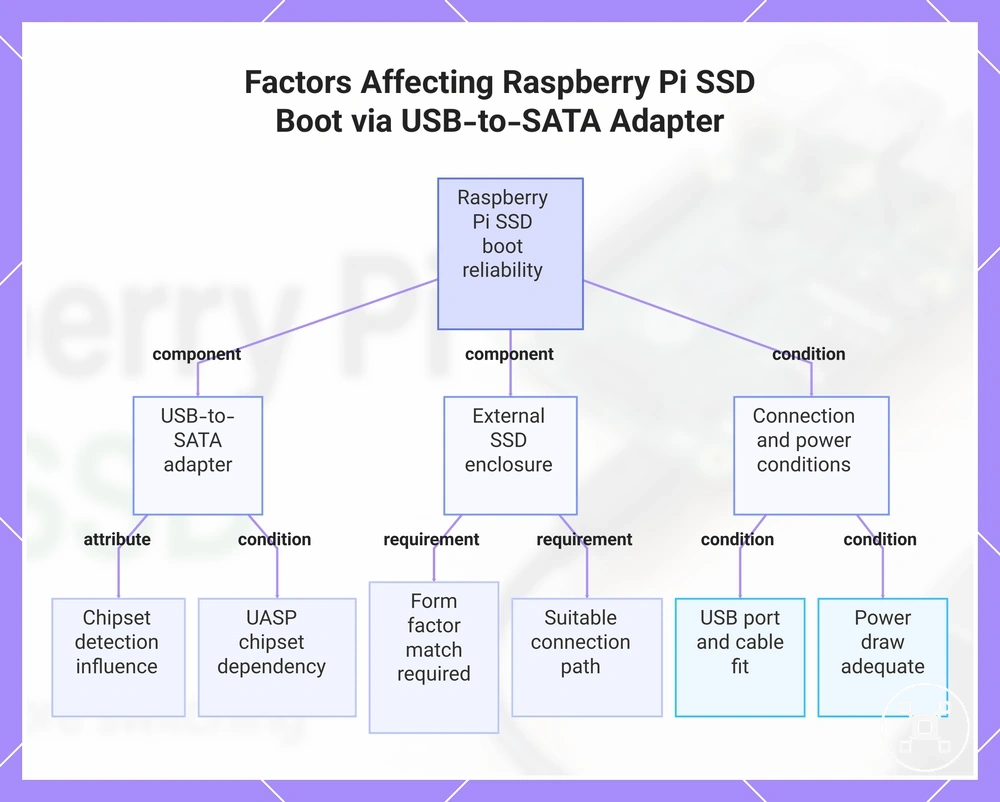
USB-to-SATA adapters and external SSD enclosures affect Raspberry Pi SSD boot reliability by controlling how the SSD connects to the USB storage path. The adapter type, UASP support, USB port connection, and enclosure fit determine whether the SSD reaches the expected device detection and boot stability conditions.
The compatibility check focuses on the connection path rather than a specific accessory choice.
The compatibility check focuses on the connection path rather than a specific accessory choice. A USB-to-SATA adapter uses an adapter chipset to manage communication between the SSD and Raspberry Pi, while an external SSD enclosure provides the interface between the SSD form factor and the USB port. These components should be checked together with cable fit and power draw because connection conditions can affect recognition and boot behaviour.
- USB-to-SATA adapter: The adapter type and chipset influence how the SSD communicates through USB and whether device detection occurs as expected.
- External SSD enclosure: The enclosure interface must match the SSD form factor and provide a suitable connection path for the storage device.
- UASP: UASP behaviour depends on the adapter chipset and system context, so its effect on storage communication should be verified within the specific setup.
- USB port and cable fit: The selected USB port and cable connection affect physical compatibility and SSD recognition during startup.
- Power draw: The SSD connection requires suitable power conditions, as insufficient power can affect detection and boot stability.
This chart shows the main factors—USB-to-SATA adapter, external SSD enclosure, and connection conditions—that affect SSD boot reliability on Raspberry Pi.
NVMe HATs and PCIe storage boards
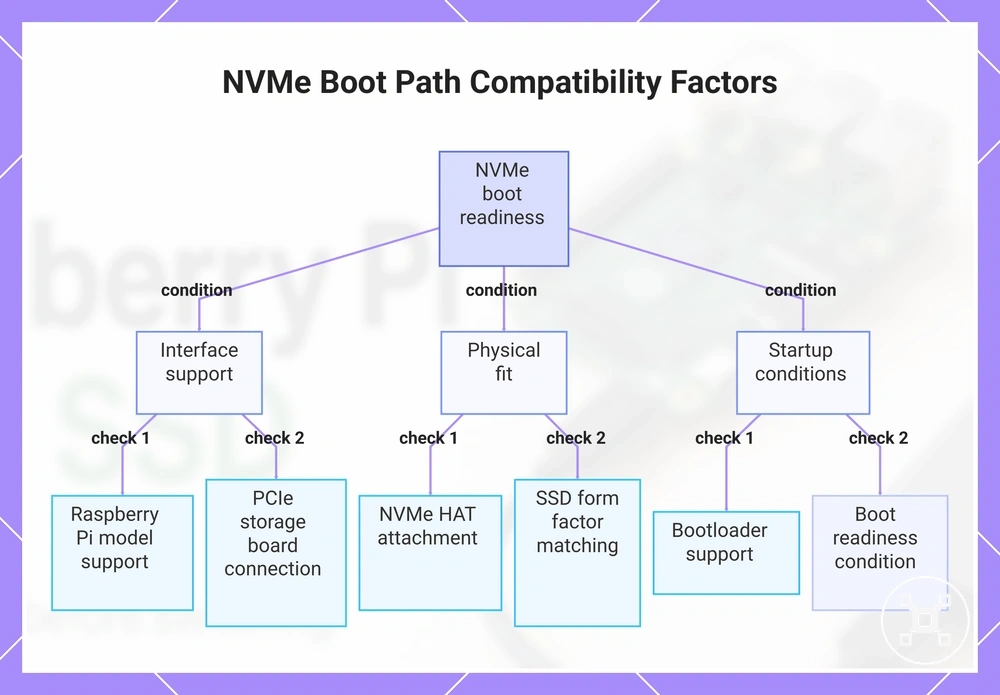
NVMe HATs and PCIe storage boards connect NVMe SSDs to Raspberry Pi models that support the required storage interface. The boot path depends on the Raspberry Pi model, PCIe connection, HAT or board fit, bootloader support, and SSD form factor. Checking these conditions helps determine whether the NVMe setup reaches boot readiness.
Checking these conditions helps determine whether the NVMe setup reaches boot readiness.
The compatibility check focuses on the relationship between the NVMe board, physical fit, interface support, and startup conditions. An NVMe HAT or PCIe storage board must match the supported Raspberry Pi model and PCIe connection, while the NVMe SSD form factor must fit the board design. Bootloader support and storage detection also influence whether the system can use the NVMe path during startup.
- Raspberry Pi model: The board model determines whether the required PCIe storage connection is available for the NVMe boot path.
- PCIe storage board: The PCIe connection provides the communication path between the Raspberry Pi and NVMe storage hardware.
- NVMe HAT: The HAT design determines the physical attachment method and fit conditions for the NVMe SSD.
- SSD form factor: The NVMe SSD drive size and physical format must match the supported board design for correct fit.
- Bootloader support: The bootloader state affects whether the Raspberry Pi can detect and use the NVMe storage path during startup.
- Boot readiness: A usable NVMe boot path requires matching model support, interface connection, SSD fit, and startup configuration.
This chart shows the key conditions that determine whether an NVMe SSD connected via a HAT or PCIe board can be used for booting on a Raspberry Pi.
Power and cable stability for external SSDs
External SSD boot consistency depends on stable power delivery and a reliable cable connection between the Raspberry Pi and the SSD. The power supply, SSD draw, cable quality, and connection path influence whether the SSD stays detected during startup and avoids symptoms such as disconnects or boot failure.
External SSD boot consistency depends on stable power delivery and a reliable cable connection between the Raspberry Pi and the SSD.
Power and cable checks help organise common stability symptoms, including intermittent booting, unexpected disconnects, and undervoltage warnings. A powered hub can be considered when the current setup cannot provide suitable power delivery, but it is not required for every external SSD configuration.
- Power supply: Check that the power supply provides suitable power delivery for the Raspberry Pi and connected SSD. Limited power conditions can contribute to undervoltage symptoms and unstable storage behaviour.
- SSD draw: The SSD draw affects the total power requirement of the setup. Higher demand can increase the chance of disconnects when available power delivery is limited.
- Cable quality: Cable quality affects the stability of the USB connection. An unstable cable path can interrupt SSD recognition and contribute to boot failure.
- Powered hub: A powered hub may help when additional power delivery is needed for the SSD connection. The need for a hub depends on the specific Raspberry Pi, SSD, and connection conditions.
- Undervoltage signs: Undervoltage warnings, disconnects, or failed startups indicate that power and cable conditions should be checked before changing other SSD boot settings.
SSD boot compared with microSD boot for Raspberry Pi use
SSD boot and microSD boot are two Raspberry Pi storage paths with different trade-offs for workload, reliability needs, setup complexity, and recovery approach. SSD boot can be useful when the additional storage setup effort matches the workload requirements, while microSD boot remains a practical option when simplicity and portability are priorities.
The choice between these boot mediums depends on storage quality, installation needs, and how the Raspberry Pi is used.
The choice between these boot mediums depends on storage quality, installation needs, and how the Raspberry Pi is used. The comparison below evaluates boot medium, speed expectations, write endurance, setup complexity, portability, recovery effort, and the resulting decision factors.
| Option | Attribute | Trade-off | Best use case |
|---|---|---|---|
| SSD boot | Boot medium | Uses an SSD storage path that requires compatible hardware, connection setup, and boot configuration checks | Workloads where the added setup effort is justified by the required storage path |
| SSD boot | Speed expectation | Storage behaviour depends on the SSD, connection method, and workload rather than the boot medium alone | Projects with storage activity that benefits from an SSD-based setup |
| SSD boot | Write endurance | SSD write durability depends on the drive quality and workload conditions | Long-running workloads with higher write activity |
| microSD boot | Setup complexity | Uses a simpler storage path with fewer connection components to configure | General Raspberry Pi use where simple installation is preferred |
| microSD boot | Recovery effort | Recovery depends on restoring or replacing the SD card used as the boot medium | Portable setups where a straightforward recovery path is useful |
The decision between SSD boot and microSD boot depends on the Raspberry Pi workload, required reliability, and acceptable setup effort. For broader context on Raspberry Pi storage options, the available storage paths can be compared before choosing the most suitable boot medium.
How to prepare a Raspberry Pi to boot from SSD
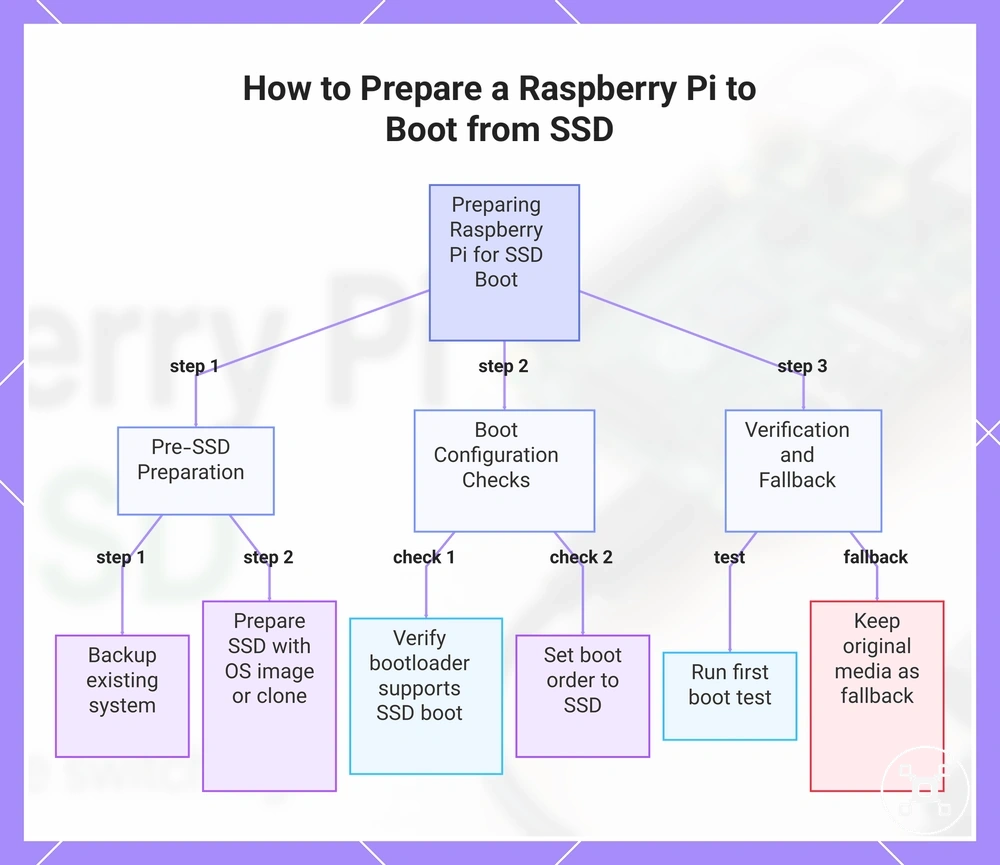
Preparing a Raspberry Pi to boot from SSD requires SSD preparation, a compatible hardware setup, and a prepared operating-system image before the SSD can be tested as the boot medium. The process uses a sequence of backup, image writing or cloning, bootloader readiness checks, boot order verification, and a first boot test to confirm the expected startup path.
Keep the original boot media available until SSD boot is confirmed because it provides a fallback if the prepared SSD does not start correctly.
Keep the original boot media available until SSD boot is confirmed because it provides a fallback if the prepared SSD does not start correctly. The preparation method can use an operating-system image or a clone of an existing system, with the final result depending on whether the Raspberry Pi recognises the SSD and follows the configured boot path.
- Create a backup: Back up the existing Raspberry Pi system before changing the storage path. The backup provides a recovery option if the SSD preparation or boot configuration requires adjustment.
- Complete SSD preparation: Write the operating-system image or create a clone of the existing system on the SSD. The verification result is a prepared SSD containing the required system data for startup.
- Check bootloader readiness: Verify that the bootloader configuration supports the selected SSD boot method. The expected result is that the Raspberry Pi can identify the SSD as an available boot device.
- Set the boot order: Configure the boot order so the Raspberry Pi checks the intended SSD storage path. The verification result is that the SSD is selected according to the configured startup priority.
- Run the first boot test: Start the Raspberry Pi using the prepared SSD while keeping the original boot media available. A successful result is the system starting from the SSD with the expected operating-system location.
Once the first boot test confirms the SSD boot path, the original boot media can be treated as a fallback rather than the active startup device. Detailed operating-system installation choices should be handled separately from this preparation sequence.
Detailed operating-system installation choices should be handled separately from this preparation sequence.
This chart outlines the three main stages to prepare a Raspberry Pi to boot from an SSD: preparation, configuration, and verification with fallback.
Write or clone the operating system to the SSD
Writing the operating system to the SSD prepares the Raspberry Pi storage path by creating a bootable SSD with the required system files. The process can use Raspberry Pi Imager for a new operating system image or a clone of an existing system, depending on whether a clean setup or an existing environment needs to be preserved.
Writing the operating system to the SSD prepares the Raspberry Pi storage path by creating a bootable SSD with the required system files.
The source system, target SSD, image-writing method, partition readiness, and filesystem state should be checked before the SSD is used for booting. A clean image creates a new operating system setup, while a clone copies an existing system when preserving the current configuration is the preferred approach.
- Select the source system: Choose whether the SSD will receive a new operating system image or a clone of an existing Raspberry Pi system. The expected result is a source method that matches the intended setup.
- Prepare the target SSD: Use Raspberry Pi Imager or another suitable image-writing method to write the operating system image, or create a clone on the SSD. The verification result is a target SSD containing the required system data.
- Check partition readiness: Confirm that the SSD partitions are prepared and the filesystem state is suitable for startup. The expected result is storage that can be recognised during the boot process.
- Verify bootability: Confirm that the prepared SSD contains the operating system files required for the next boot test. If the goal is a complete operating system setup, see the dedicated guide to install Raspberry Pi OS for the broader installation process.
Set the boot order for the SSD
Setting the boot order directs the Raspberry Pi to try the SSD as the intended boot device before moving to fallback storage paths. The correct boot order depends on the Raspberry Pi model, bootloader configuration, and whether the SSD is detected through the selected USB or NVMe connection.
Verify the boot priority after the SSD is prepared and the bootloader configuration supports the selected storage path.
Verify the boot priority after the SSD is prepared and the bootloader configuration supports the selected storage path. USB priority and NVMe priority are model-dependent, so the available boot sequence should be checked for the specific Raspberry Pi setup. Keep the microSD available during testing because fallback behaviour can cause the Raspberry Pi to start from microSD if the SSD is not detected or is not selected first.
- Check bootloader configuration: Confirm that the bootloader configuration supports attempting startup from the SSD. The expected result is that the SSD is available as a possible boot device.
- Set SSD priority: Adjust the boot order so the intended SSD path is checked at the required priority level. USB priority or NVMe priority depends on the Raspberry Pi model and storage interface.
- Test fallback behaviour: Keep the microSD present while verifying the startup path. If the SSD is not visible or is not first in the boot order, the Raspberry Pi may continue using the microSD boot path.
- Verify the boot result: Confirm that the Raspberry Pi starts from the SSD rather than the fallback device. A successful result is the SSD being used as the active boot path.
Test the SSD as the active boot drive
Testing the SSD as the active boot drive confirms whether the Raspberry Pi is running from the SSD rather than only completing startup through another storage path. Startup success alone does not confirm the SSD is the active root device because the root filesystem or mounted devices may still involve microSD.
Complete the verification checks before changing the recovery setup.
Complete the verification checks before changing the recovery setup. The confirmation process compares the boot source, root filesystem, mounted devices, and startup consistency to determine whether the SSD is actually being used as the active boot path.
- Confirm the boot source: Check the device used during startup and verify that the SSD is identified as the boot source. The expected outcome is that the Raspberry Pi starts from the intended SSD path.
- Verify the root filesystem: Confirm that the root filesystem is located on the SSD rather than another storage device. The result shows whether the SSD is the active root device.
- Review mounted devices: Check the mounted devices and confirm whether microSD is still involved in the running system. This identifies cases where the system starts but still relies on microSD for part of the boot path.
- Run the microSD removal test: Only perform this test after confirming a recoverable boot state. The expected outcome is that the Raspberry Pi continues startup from the SSD without depending on microSD.
- Check startup consistency: Repeat the boot process and confirm that the SSD remains the active boot drive across restarts. Consistent results provide final confirmation of the SSD migration.
Raspberry Pi SSD boot problems to check first
SSD boot problems usually come from a few fault classes: bootloader configuration, SSD detection, image state, adapter connection, port selection, and power conditions. A symptom-based check helps identify the likely cause before changing the SSD setup. The goal is to connect each symptom with a check and an expected outcome.
The goal is to connect each symptom with a check and an expected outcome.
Bootloader and detection checks confirm whether the Raspberry Pi can see the SSD and attempt startup from the intended storage path. If the SSD is not detected, the likely cause may involve the bootloader configuration, storage interface, or connection state. Checking detection first shows whether the failure occurs before the operating system starts.
The corrective action is to verify the image contents and confirm the active storage device.
Image and root-device checks confirm whether the SSD contains a usable image and whether the system is using the expected root device. A damaged image, incomplete preparation, or incorrect root filesystem selection can prevent the SSD boot path from completing. The corrective action is to verify the image contents and confirm the active storage device.
Adapter, port, cable, and power checks focus on the physical connection path.
Adapter, port, cable, and power checks focus on the physical connection path. An adapter issue, unsuitable port, unstable cable, or insufficient power condition can contribute to SSD boot failure symptoms. Testing these components helps identify whether the storage connection remains stable during startup.
Use the results of these checks to choose the next diagnostic step.
Use the results of these checks to choose the next diagnostic step. For broader context on Raspberry Pi boot troubleshooting, review related startup issues when SSD checks do not identify the cause.
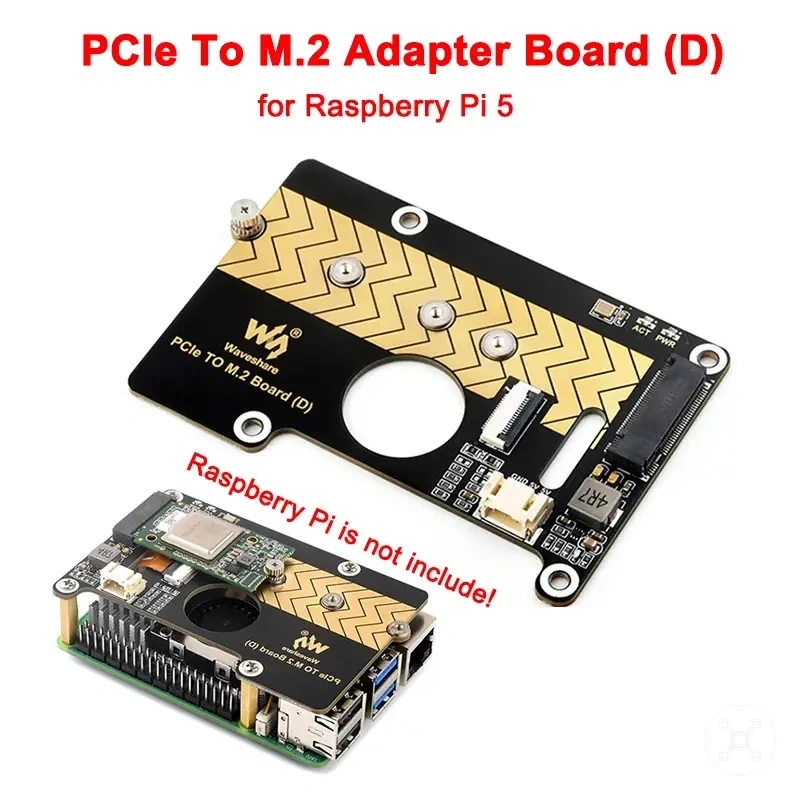
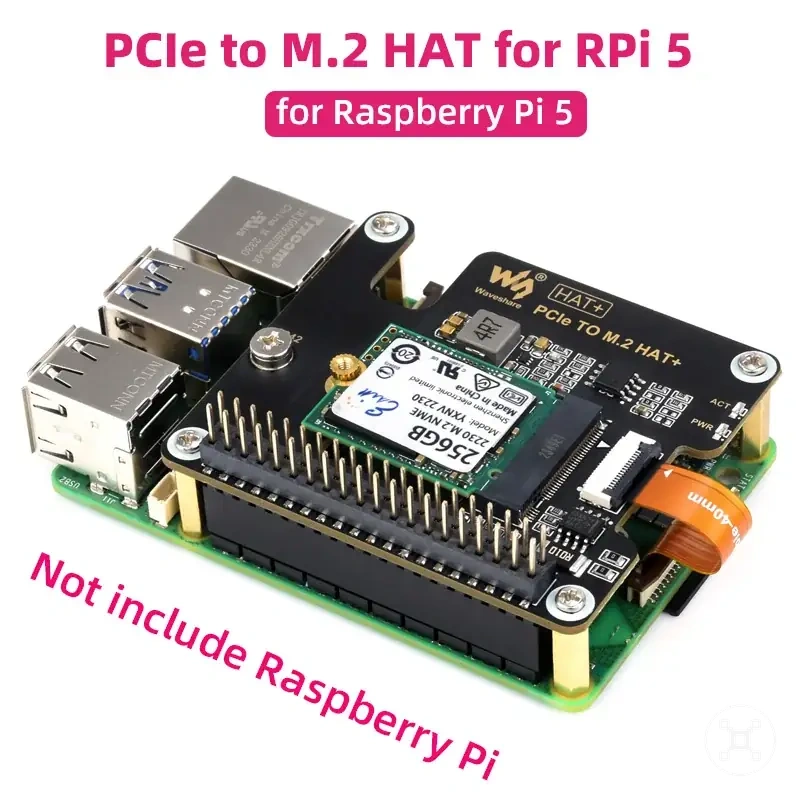
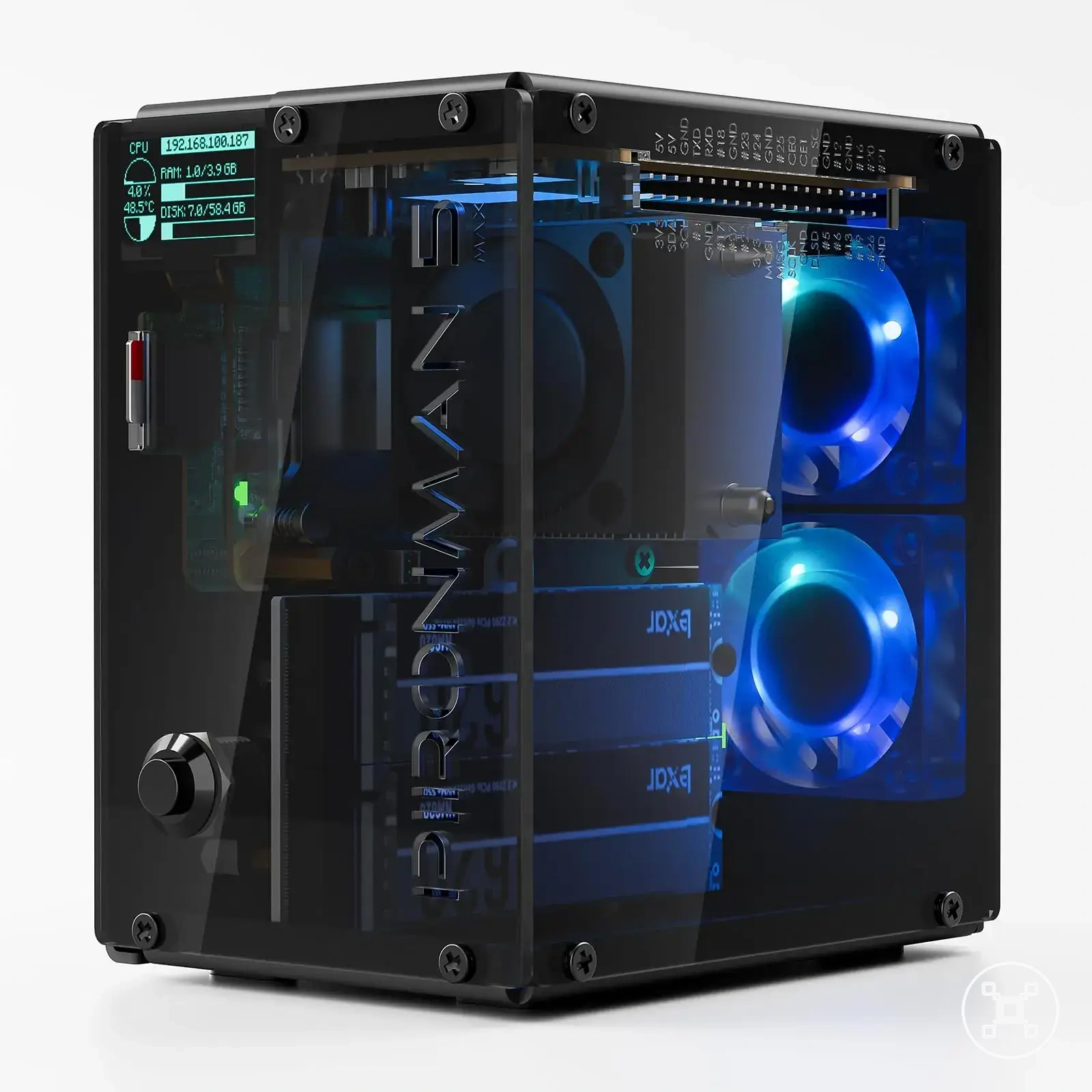
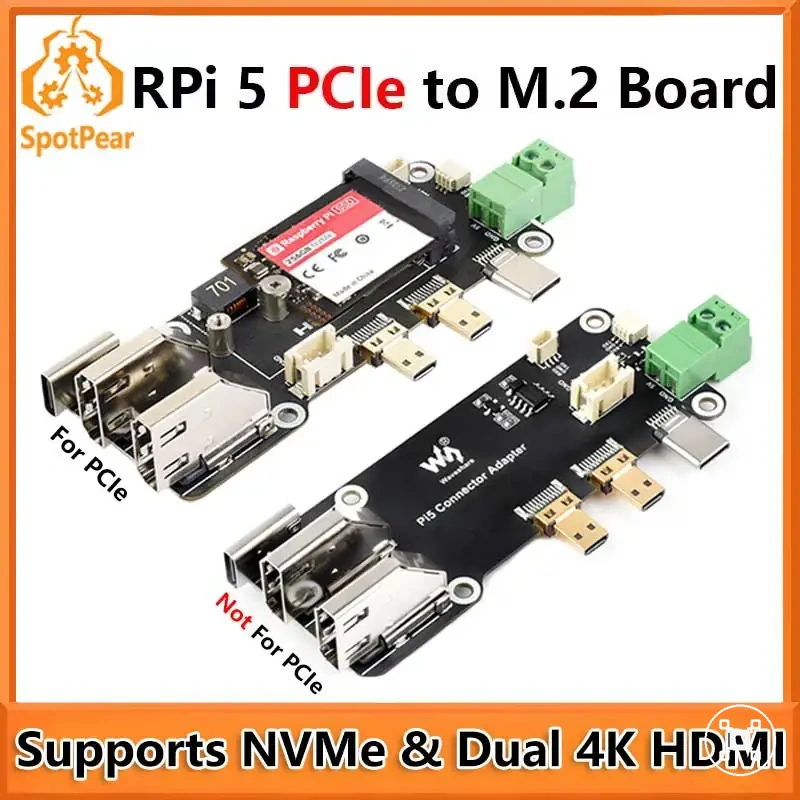
Here are product examples that may make comparison easier.
Here are product examples that may make comparison easier. Before buying, always review the compatibility criteria, essential features, and product details.

| Symptom | Likely cause | Check | What it means |
|---|---|---|---|
| SSD boot failure | Bootloader or detection issue | Check bootloader settings and confirm SSD visibility | The Raspberry Pi may not be reaching the SSD boot path |
| System starts but uses another device | Image or root-device mismatch | Verify the image and active root filesystem | The SSD may not be the active system device |
| Intermittent startup or disconnects | Adapter, cable, port, or power condition | Test the SSD connection and power path | The storage connection may not remain stable during boot |
Bootloader, EEPROM, and boot-order errors
Bootloader error conditions, EEPROM state, and boot order settings can block SSD startup when the Raspberry Pi does not reach the intended storage path. Common signals include SSD detection failure, unexpected fallback behaviour, or a non-boot outcome after the boot process checks available devices.
Firmware and priority checks should be performed before changing the operating system image or storage setup.
Firmware and priority checks should be performed before changing the operating system image or storage setup. The EEPROM state, bootloader configuration, and selected boot order determine whether the Raspberry Pi attempts USB boot or NVMe boot for the specific model and connection path.
| Symptom | Likely cause | Check | What it means |
|---|---|---|---|
| SSD is not attempted during startup | Incorrect boot order or boot priority | Check the configured boot order and available boot paths | The Raspberry Pi may be selecting another device before the SSD |
| SSD contains a valid image but is ignored | EEPROM or bootloader configuration does not match the selected SSD path | Confirm firmware state and SSD detection through the available interface | The image may be present, but the boot process is not reaching the drive |
| System starts from microSD instead | Fallback behaviour after SSD detection failure | Check whether USB boot or NVMe boot is available and whether the SSD is detected | The Raspberry Pi has moved to the next available boot device |
| Startup ends in a non-boot outcome | Boot priority, firmware state, or storage detection issue | Verify the model-specific bootloader configuration and selected boot path | The configured SSD startup route is not completing successfully |
SSD image, partition, and root-device issues
SSD image, partition, and root-device issues can block Raspberry Pi SSD boot when the drive does not contain a usable bootable image or the system cannot reach the expected root filesystem. The main checks focus on image integrity, partition table structure, boot partition availability, filesystem state, and device identifier references that affect startup.
A storage layout problem should be linked to a specific startup symptom before changing the SSD configuration.
A storage layout problem should be linked to a specific startup symptom before changing the SSD configuration. Verify that the SSD image is valid, the partition layout is readable, and the root filesystem reference points to the intended device before considering further storage changes.
| Symptom | Likely cause | Check | What it means |
|---|---|---|---|
| SSD is detected but boot does not continue | Image integrity or boot partition issue | Check the SSD image and confirm the boot partition is present | The drive may contain data but not a complete boot path |
| Boot process cannot locate the operating system | Partition table or root filesystem issue | Verify the partition table and confirm the root filesystem is reachable | The Raspberry Pi cannot find the required system location |
| Root device is not found during startup | Incorrect device identifier reference | Check the identifier used for the root filesystem and confirm it matches the SSD layout | The boot process may be pointing to an unavailable device |
| SSD startup fails after image preparation | Boot-readiness issue involving image, partition, or filesystem state | Validate the SSD structure and confirm the storage path is accessible | The SSD is not yet presenting a usable boot environment |
Adapter, USB port, and power symptoms
Adapter behaviour, USB port selection, cable quality, and power instability can affect SSD boot behaviour when the Raspberry Pi cannot maintain a stable storage connection. These hardware symptoms should be checked through local tests before identifying a specific component as the cause.
These hardware symptoms should be checked through local tests before identifying a specific component as the cause.
The diagnostic process focuses on adapter detection, USB port choice, cable fit, SSD power draw, undervoltage signals, and disconnects. Intermittent boots, slow detection, or a drive that works on another computer but fails on the Raspberry Pi can indicate different connection conditions rather than a single confirmed failure source.
| Symptom | Likely cause | Check | What it means |
|---|---|---|---|
| SSD is not detected during startup | Adapter behaviour or USB port connection issue | Test the adapter connection and confirm the SSD is visible through the selected USB port | The Raspberry Pi may not be reaching the SSD storage path |
| SSD disconnects during boot | Cable quality or power instability | Check the cable fit and review SSD power draw conditions | The storage connection may not remain stable during boot behaviour checks |
| Undervoltage warning appears during startup | Power delivery condition affecting SSD operation | Check for undervoltage signals and observe SSD behaviour during startup | Power instability may be affecting detection or startup consistency |
| SSD works on another computer but not on Raspberry Pi | Different adapter, USB port, cable, or power conditions | Compare the Raspberry Pi connection path with the working setup | The local hardware environment may be affecting SSD boot behaviour |